In general, Drive Test can be define as a methode that used to verify the actual condition of RF signal certain operator at certain place.
Several functions of drive test :
- Analyzing customer complaint of certain operator in their home or office area
- Finding problem in BTS ( Timeslot Check, TRX Check, Swap Feeder)
- Analyzing the result of optimization process (continuity and all of area)
There are softwares can be used for drivetest that installed on laptop. TEMS Investigation (Ericsson), NEMO (Nokia).
Here the steps to start learning drivetest with TEMS Investigation :
a. Drive Test Equipment
1. TEMS Handset (complete with Charger, Headset, Data Cable) and USB Hub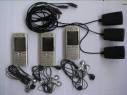
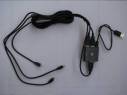
2. Laptop (installed TEMS Investigation) and Adapter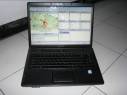
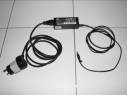
3. GPS (Ext Antenna and Data Cable)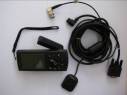
4. ATEN (Serial to USB)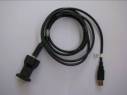
5. Scanner for WCDMA (Ext Antenna GPS and RF, Data Cable)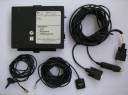
6. Inverter and Terminal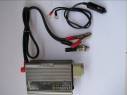
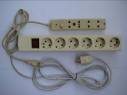
7. Battery and Charger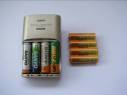
Example postion of that equipments in car :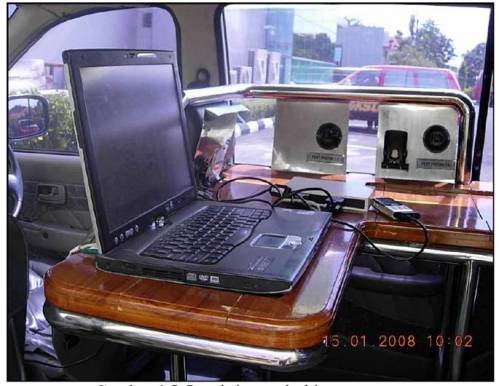
B. Laptop Configuration
1. Power Management
Set Power Management Laptop always On :
Start -> Settings -> Control Panel -> Power Options -> Set All Power Scheme “never”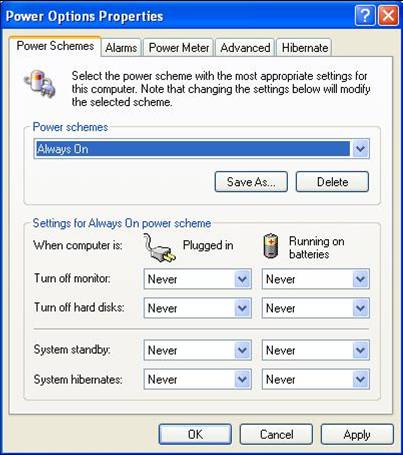
2. Virtual Memory
Set Virtual Memory :
Start -> Settings -> Control Panel -> System
Advance -> Performance Settings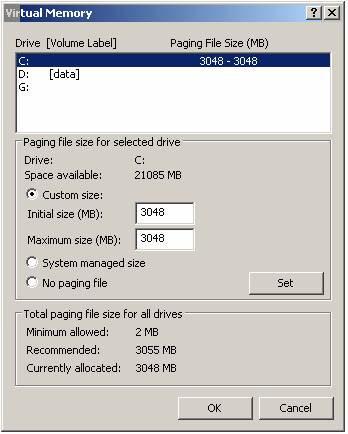
- Workspace Configuration
After installition process, open Tems Investigation.
>> All Programs -> TEMS Investigation -> Data Collect
This is the example workspace for 2G (Mode Dedicated-Idle).
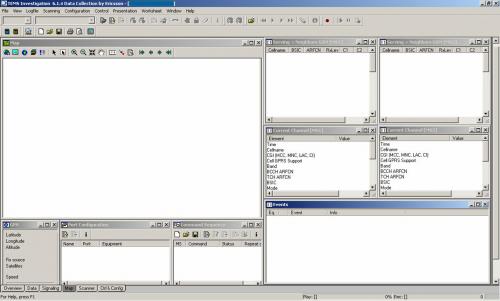
1. Open Worksheet Map & arrange size of window Map
2. GPS (Presentation -> Positioning -> GPS)
3. Port Configuration (Configuration -> Port Configuration)
4. Command Sequence (Control -> Command Sequence)
5. Serving + Neighbours GSM (Presentation -> GSM -> Serving + Neighbours GSM)
6. Current Channel (Presentation -> GSM -> Current Channel)
7. Event (Presentation -> Signalling -> Events)
for benchmark workspace, add Serving + Neighbours GSM and Current Channel for MS3.
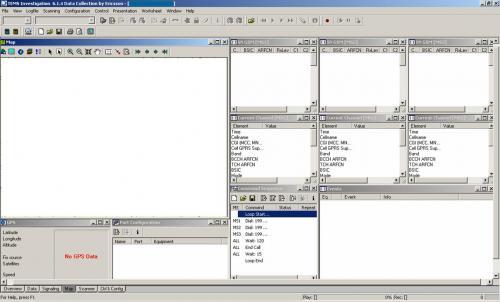
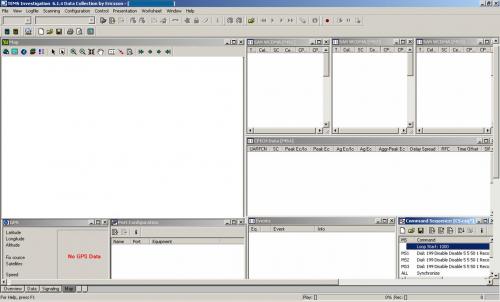
- Map Configurations
Create Geoset : Click Geoset Manager on Map window

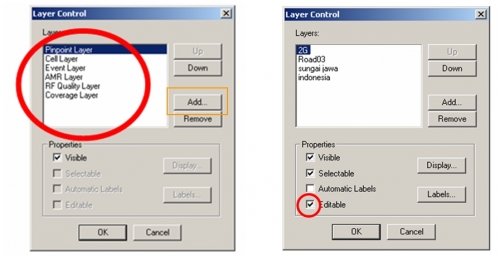
1. On layer control
 remove all layer except Pinpoint, Cell, Event, AMR, RF Quality and Coverage layer
2. Add layer Route, Road, MCOM Site, and other *.tab
3. Save Geoset
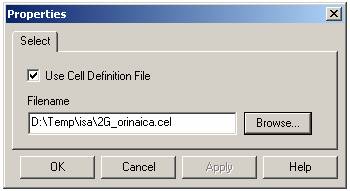
4. Load Cell file : Configuration -> General -> Cellfile Load
5. Use Cell Definition File then choose cell file
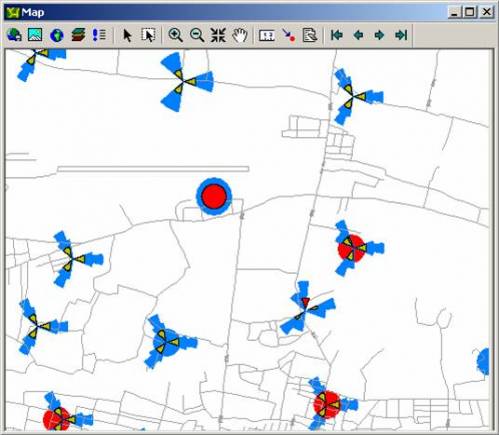
6. ie. Map window configured
- Port Equipment Configurations
(see my older post :-))
- Command Sequence Configurations
Voice Call CS .e “120/15” means 120 second on call then call end, 15 second wait and then call again.
1. Loop Start give the number of repetition for command below the loop start (General -> Loop Start)
2. Dial select the MS and give the destination number (Voice -> Dial)
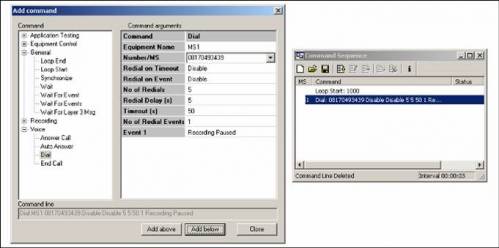
3. Synchronize to synchcronize MS before go to the next command (General -> Synchronize)
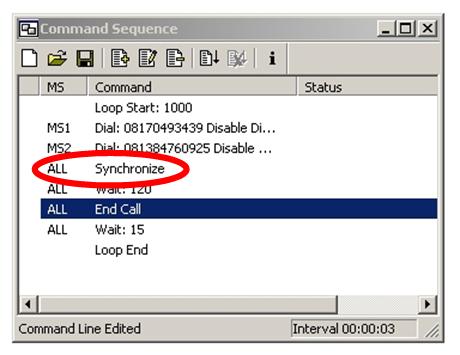
4. Wait 120 wait 120s on call (General -> Wait)
5. End Call (Voice -> End Call)
6. Wait 15 wait 15 before call again (General -> Wait)
7. Loop End (General -> Loop End)
Video Call CS
In general cs for video call is same as voice call, but in video call in dial command we must add “v”.
i.e
Loop Start
Dial v081384760975
Wait 120
End Call
Wait 15
Loop End
D. DRIVE TEST
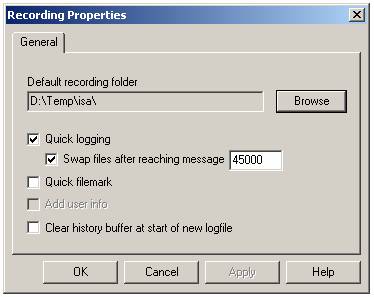
1. Configure Recording Properties : Menu Tab Logfile -> Recording Properties
2. Select recording folder : Click Browse -> Select Directory
3. Select Quick logging and setup size of swap file “after reaching message “
4. Use 2G or 3G configured workspace (with spacific map : road, route, cell file)
5. Make sure all equipments configured to the right port
6. Connect all

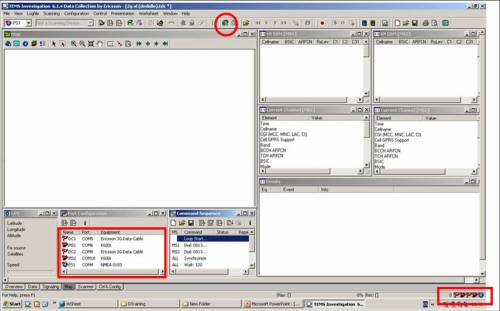
7. After all equipments connected (symbol green), window gps, serving neighbour gsm, current channel and events will be full filled
8. Don’t forget to lock TEMS Handset into GSM only or 3G only.
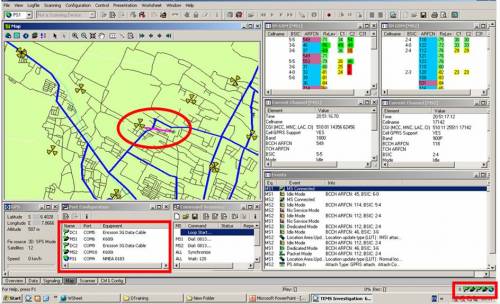
9. To start drive test, click record then start command sequence
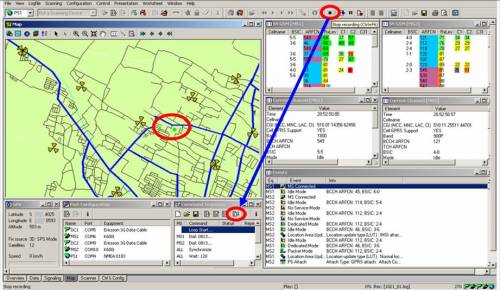
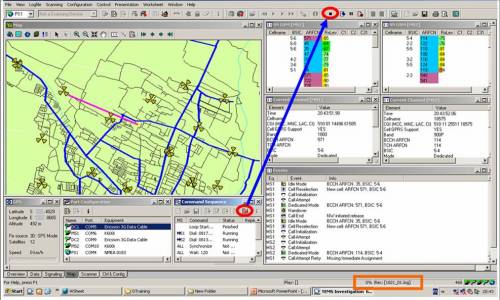
10. After all route complete, wait untill call end then stop command sequence and stop recording.
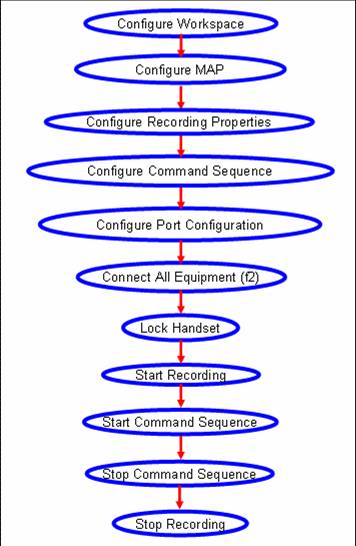
Here the flow step by step Go Drive Test !!!
E. LOG FILE CHECKING
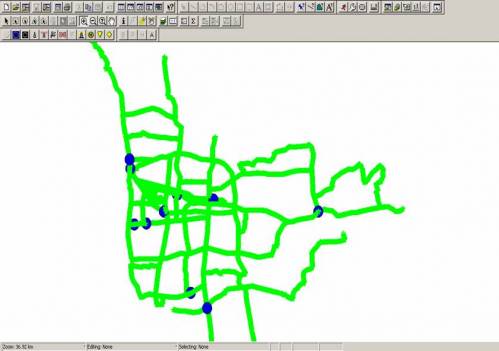
Check logfile by playing one by one or export into MapInfo-Tab file
F. POST PROCESSING:
- Report Generator
1. Open TEMS Data Collection : Start -> TEMS Products -> TEMS Investigations6.1.4 Data Collection
2. Menu Tab Logfile -> Report Generator
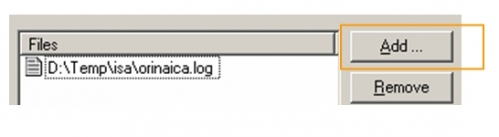
3. Add logfile
4. Setup Output directory

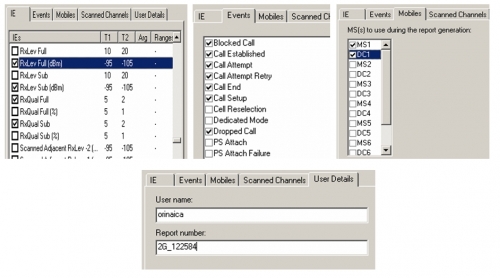
5. Setup Report properties
6. Setup IEs, Events, Mobiles, and User Details
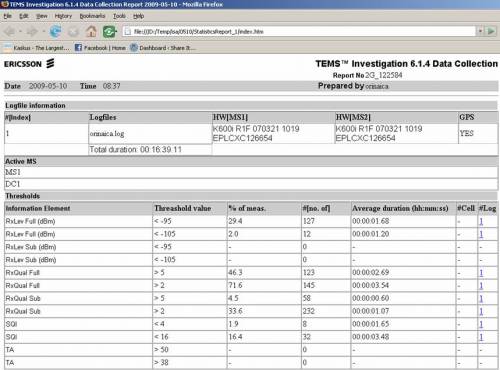
7. Result of Report Generator in *.htm
- Map Info (Plot IEs)
Before post process in mapinfo, created *.tab file from logfile in TEMS :
1. Export logfile : Menu Bar Logfile -> Export Logfile
2. Click Add Order

3. Choose Format : MapInfo Tab-file
4. Setup IEs (Info Elements)
for GSM Dedicated or Idle :
- RxLev Full (dBm)
- RxLev Sub (dBm)
- RxQual Full
- RxQual Sub
- SQI
- TA
- Cell Id
- Frequncy Band
- Latitude
- Longitude
for WCDMA Dedicated / Idle / Scanner :
- AS Cell Name
- AS CPICH Ec/No
- AS CPICH RSCP
- SAN CPICH Ec/No
- SAN CPICH RSCP
- SAN Cell Id (CI Part)
- Sc 1st Aggr Ec (dBm) -> Scanner
- Sc 1st Aggr EcIo (dB) -> Scanner
- Sc Best SC -> Scanner
- Latitude
- Longitude
5. Configure Options Tab
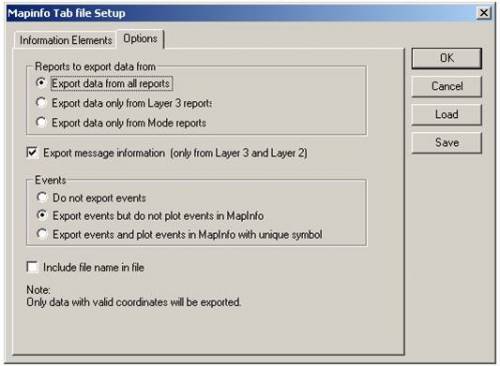
6. Save *.mex
7. Choose Logfile : Click Browse file
8. If there are more than one logfile we can merge it by Merge Output
9. Choose Output directory : Click Browse dir
10. Give Prefix : Ded if Dedicated and Idle if Idle
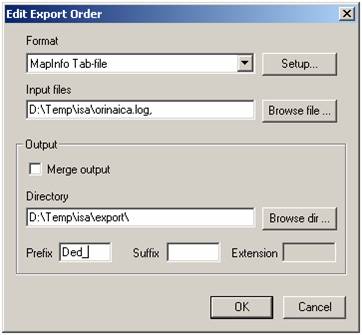
11. Start process, click start

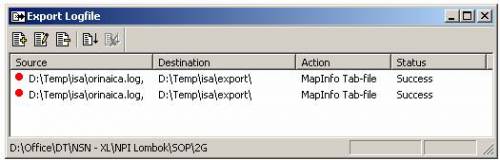
12. If done, status Success
13. There were created four files for each action (*.dat, *.id, *.map, *.tab)
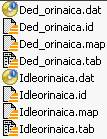
14. Open the exported file into MapInfo : Menu Tab File -> Open
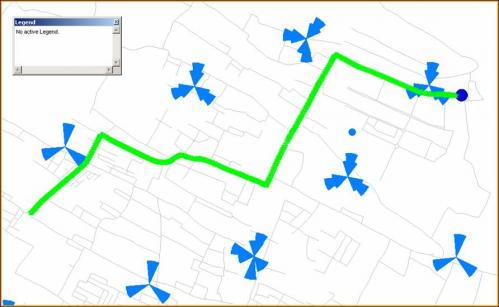
15. Create Thematic Map : Menu Tab Map -> Create Thematic Map
16. Choose Type -> Range
17. Template Name -> Region Ranges
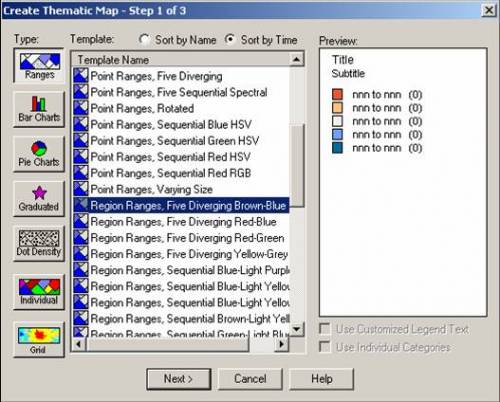
18. Choose Table and Field (ie. Plotting RXQUAL_SUB from Dedicated mode

Không có nhận xét nào:
Đăng nhận xét